
A first tablet is exciting for a child and slightly nerve-wracking for a parent. The device can be a tool for reading, drawing, learning apps, and video calls with grandparents. It can also become a source of arguments, unexpected purchases, or content that is too mature.
The difference usually comes down to setup. Most of the important decisions are easiest to make before the tablet is given to the child. Once the device is in daily use, changing settings feels like taking something away.
This guide focuses on the practical steps that work for most American households in 2026, whether the tablet is an iPad or an Android device.
Decide the Basics Before You Open the Box
Two decisions shape everything that follows.
First, decide whether the tablet will be dedicated to the child or shared. A dedicated device is simpler to manage with strong parental controls. A shared family tablet requires more day-to-day supervision and clearer household rules.
Second, decide the age range and the main uses. A five-year-old needs tighter content filters and shorter time limits than a ten-year-old who will use the tablet for schoolwork. Write down the intended uses—educational apps, video calls, age-appropriate games, drawing—so you can match the settings to those goals.
Physical preparation matters too. Buy a sturdy case before the first drop happens. Decide where the tablet will live when it is not in use. Charging in a common area rather than a bedroom reduces late-night use and makes it easier to enforce downtime.
Create a Proper Child Account
Do not set the tablet up under your own Apple ID or Google account. A child account gives you the management tools and keeps the child’s data separate.
For iPad
Use Family Sharing. On your own device go to Settings → [Your Name] → Family → Add Member → Create Child Account. Follow the prompts with the child’s name and birth date. Once the child account exists, sign into the new iPad with that account during setup.
Apple’s Quick Start feature can speed this up if you hold your own device near the new iPad and choose the child setup path.
For Android
Use Google Family Link. Install the Family Link app on your phone, create or link a Google account for the child (under 13 requires parental consent), then supervise the tablet. The child signs into the tablet with their supervised account. You manage limits and approvals from your own phone.
Both systems let you approve app downloads, set time limits, and review activity. The child account is the foundation that makes the rest of the controls work.
Set the Core Restrictions
Once the child account is active, turn on the main parental tools.
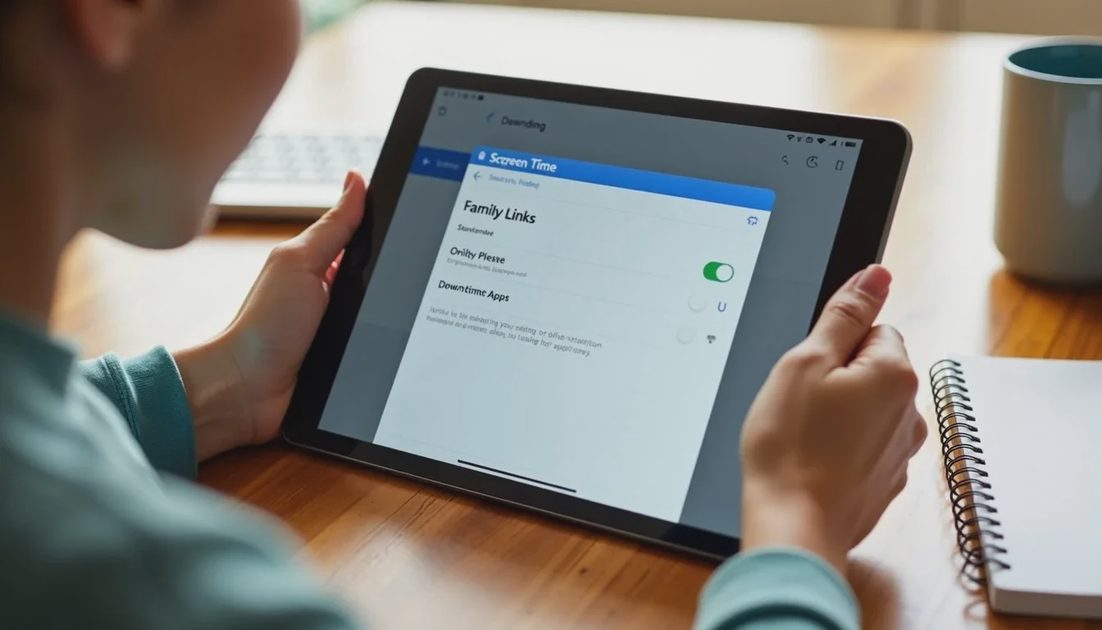
Screen Time (iPad) or Family Link (Android)
Enable the feature and set a passcode the child does not know. This passcode is separate from the device unlock code.
Configure these settings first:
Downtime / Bedtime — Choose hours when the tablet should be unavailable (for example 8 p.m. to 7 a.m.). During those hours only approved “always allowed” apps work.
App Limits — Set daily time caps by category (games, entertainment, social). Educational or reading apps can be left unlimited if that matches your goals.
Content & Privacy Restrictions (iPad) or equivalent filters (Android) — Limit apps, movies, and web content by age rating. For younger children start with the most restrictive setting and loosen later.
Purchases — Set app installs and in-app purchases to require approval or to be blocked entirely. This single setting prevents most surprise charges.
Web content — Limit adult websites or, for younger children, allow only specific sites.
On Android, Family Link also lets you approve or block individual apps and set a school-time schedule if needed.
Start stricter than you think necessary. It is easier to relax limits as the child demonstrates responsibility than to tighten them after problems appear.
Add Household Rules That Controls Cannot Enforce
Technical settings are only half the solution. Clear family rules reduce conflict.
Useful starting rules include:
The tablet stays in common areas during the day and charges overnight outside bedrooms.
New apps require a quick conversation before they are approved.
If something on the screen feels confusing or upsetting, the child comes to a parent instead of trying to fix it alone.
Screen time is paused for meals, homework, and outdoor play.
Write the main rules down and post them near the charging spot. Review them every few months as the child grows.
Sit with the child during the first few sessions. Watching how they navigate apps and what content appears gives you better information than any activity report.

A Practical First-Week Checklist
Create the child account through Family Sharing or Family Link.
Install a protective case.
Turn on Screen Time or Family Link and set the parent passcode.
Configure downtime, app limits, content filters, and purchase approval.
Decide and communicate the household rules.
Choose a consistent charging location in a common area.
Spend time using the tablet together for the first few days.
Review the activity report after one week and adjust limits if needed.
None of these steps requires advanced technical skill. Most take only a few minutes each. The payoff is a tablet that supports the uses you intended while reducing the most common sources of friction and risk.
The goal is not to eliminate all risk or all screen time. The goal is a setup that matches the child’s age, keeps purchases and inappropriate content under control, and leaves room for the tablet to be useful rather than constant.