
Privacy settings are scattered across phones, computers, browsers, and online accounts. The volume makes it easy to ignore the whole topic. In practice a small number of changes deliver most of the useful reduction in tracking and exposure for a typical family.
The list below focuses on high-impact, low-effort adjustments that work across common devices. None of them require technical expertise. Most can be completed in a single evening.
1. Turn On Two-Factor Authentication for Email and Banking
Email is the recovery path for almost every other account. Banking and primary shopping logins carry direct financial risk. Enable two-factor authentication (2FA) on these first. Prefer an authenticator app over text messages when both options exist. This single step blocks the majority of account-takeover attempts that rely only on a stolen password.
2. Use Unique Passwords (Ideally via a Password Manager)
Stop reusing the same password across sites. A password manager generates and stores strong unique passwords so no one has to memorize them. Family plans make sharing household logins (streaming, utilities) straightforward while keeping personal accounts private. This change eliminates the cascade of compromises that follows a single breached site.
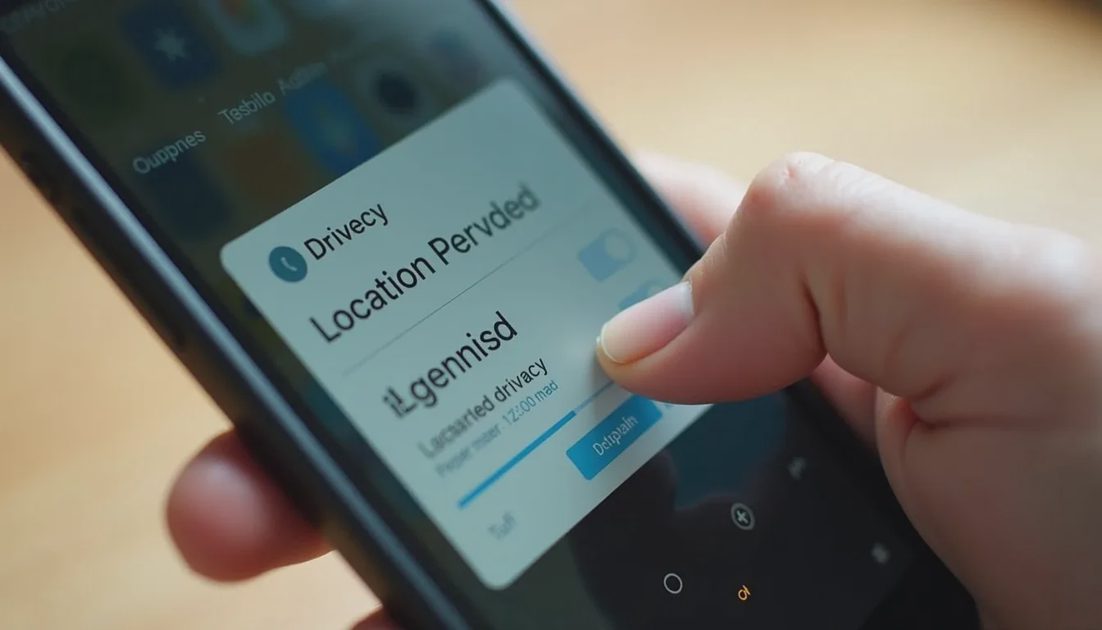
3. Limit Location Access on Phones and Tablets
Most apps request location “all the time” or “while using.” Change the default to “while using the app” or “never” except for maps and genuine navigation needs. Review the list periodically; apps often re-request broader access after updates. This reduces the continuous location history many services build by default.
4. Review Camera and Microphone Permissions
Open the privacy settings on each phone and tablet and examine which apps can use the camera and microphone. Revoke access for any app that does not clearly need it. Social media, shopping, and utility apps rarely require constant microphone or camera permission. This limits both intentional and accidental data collection.
5. Tighten Browser Tracking Protection
In Chrome, Edge, Firefox, or Safari, raise the tracking-prevention or enhanced-tracking-protection level. Block third-party cookies where the browser allows it without breaking too many sites. These settings reduce the ability of advertisers and data brokers to follow activity across different websites. The change is one toggle or menu selection on most browsers.
6. Turn Off Ad Personalization Where It Is Easy to Find
Google, Apple, Microsoft, and major social platforms offer ad-personalization or interest-based-advertising controls. Disabling or limiting these options reduces the detail of the profiles built from browsing and app use. The controls are usually under privacy or advertising sections of the account settings. Exact names vary, but the intent is the same: stop using activity data to target ads as aggressively.
7. Disable Unnecessary Activity and Web History Saving
Google accounts in particular offer Web & App Activity, Location History, and YouTube History controls. Turning these off or setting auto-delete to a short period (for example three months) limits how long detailed activity records are retained. Similar history and personalization settings exist in other major accounts. Review them once and set a retention period you are comfortable with.
8. Keep Automatic Updates Enabled
Operating-system and browser updates frequently include privacy and security fixes. Ensure automatic updates are turned on for phones, tablets, and computers. This removes the need to remember manual checks and closes known vulnerabilities that trackers or attackers can exploit.

9. Use Separate Accounts for Children
On shared or child devices, create proper child accounts through Apple Family Sharing, Google Family Link, or the equivalent Microsoft tools. Do not let children use an adult account. Child accounts enable age-appropriate restrictions and keep browsing and download histories separate. This is both a privacy and a safety control.
10. Set a Simple Household Rule About Sharing Personal Information
Technical settings cannot cover every situation. Agree on a clear family expectation: full name, school, address, phone number, and daily routines are not shared in games, chats, or comment sections. Younger children need the rule stated simply; teenagers need the reason explained. This behavioral setting prevents many of the problems that software alone cannot stop.
Putting the Changes into Practice
Work through the list device by device or account by account. Start with the primary email and the phones that leave the house every day. Write down any master passwords or recovery codes in a safe place. Revisit app permissions every few months because new apps and updates can reset them.
None of these steps makes a household invisible online. They do reduce the volume of data that is collected by default, limit the damage from a single compromised password, and give parents clearer control over children’s devices. The cumulative effect is noticeably better privacy with very little ongoing effort.
Privacy improvements do not require perfect knowledge or expensive tools. They require changing the settings that matter most and then leaving them alone. These ten are a practical place to begin.